October 06, 2026
How to Organise Pet Photos So You Can Find Them Again
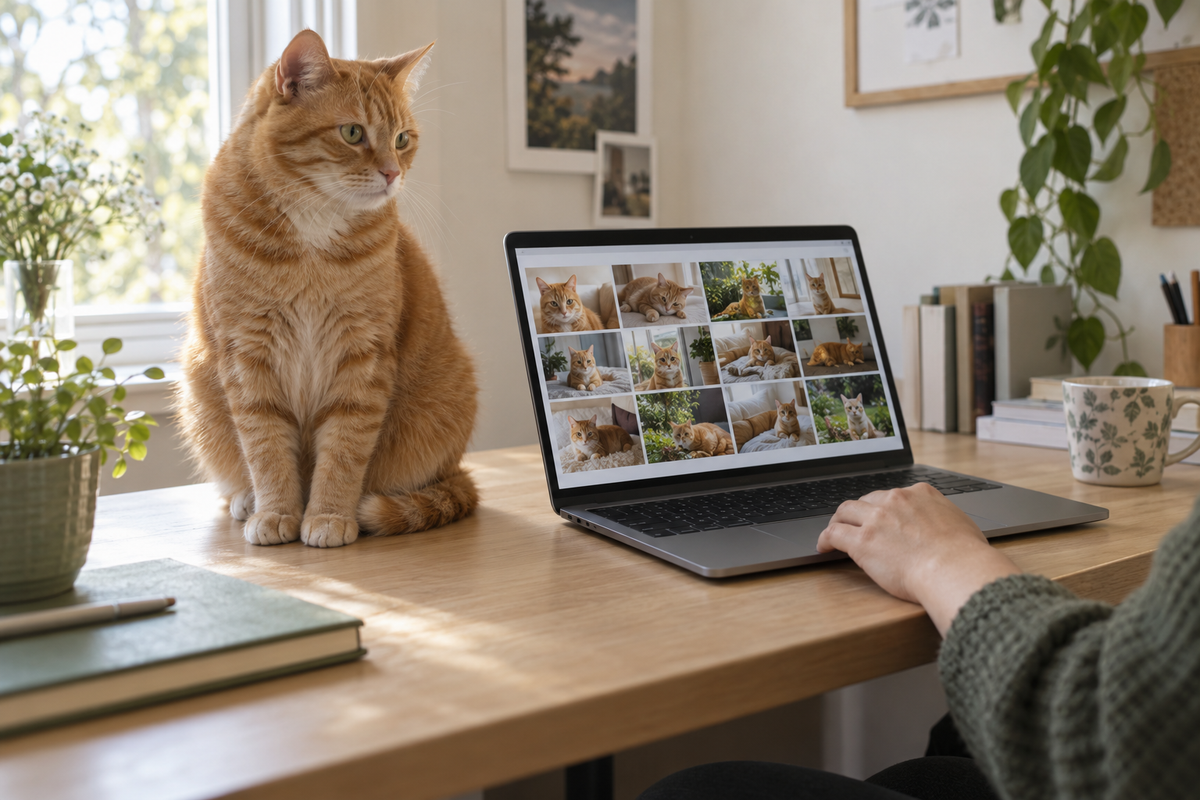
You remember the photograph: your dog at the kitchen window, with one ear folded back. Finding it means scrolling past months of screenshots. Deciding how to organise pet photos is easier when you start with one missing picture. What would you type to find it?
Choose a set from one pet and one year that you can review in a sitting. Leave the rest of the camera roll alone for now. Work in the photo app or folders you already use, and keep the source files while you try the arrangement. This guide concerns photographs that are already digital; use our old pet photo scanning guide for prints that still need copying.
Start with a photograph you want to find
Write down the words you would use to describe the missing picture. They might include the pet's name, an approximate year and something in the scene. “Milo, kitchen window, 2024” is more useful than “cute dog”. Milo is the invented dog in the examples below. For your own pictures, use the names and moments you remember.
Next, check where that picture might be. Is it in your phone library, a camera import on a laptop or a message from a relative? List those locations before bringing everything together. Keep imports from different sources separate initially, particularly when two devices have used the same file names.
Save the original file if you have it, alongside any version someone has cropped or captioned. A screenshot of a picture might be the only copy you can find today. Label it as a screenshot so it is not mistaken for a camera original. Ask the person who took the photo whether they still have the source file.
The Library of Congress's digital photograph guidance recommends descriptive file names, subject tags and a folder structure with a brief explanation. Write down what belongs in each folder and where new pictures should go.
Give dates and names different jobs
Dates help you browse a stretch of time; names help you gather pictures of the same pet across years. Use both where your app supports them. Adobe's guide to photo organisation describes date sorting, ratings and albums for subjects or events as different ways of finding photographs.
In a folder-based collection, a year folder can hold smaller event folders. Within “2024”, you might have “Milo-window” and “Milo-and-Pip-garden”. If you prefer an app, keep its library structure and make a pet album instead. Use the app's own album controls; the folder example is for loose files.

For example, a copied file might be named 2024-05-12_Milo_window_001.jpg, but only if you know the full date. If you know only the year, use 2024_Milo_window_001.jpg and put “month unknown” in the accompanying note. Use only the date information you actually have.
Leave the file extension unchanged. In your note, include the source file name so you can trace the copy back. Avoid giving ten different images the same name during a bulk rename. Try the pattern on a few copies and see whether you can find the source again before continuing.
Photos of two pets should be findable under both names where labels or album membership allow it. Keep both names in the description of the source image. If you make copies for separate projects, label those copies by project.
Check the pet labels instead of trusting every match
Some apps can gather photographs of the same animal. Google Photos lets you name pet face groups and search using the label, although the feature is not available in every region, domain or account type. Manual albums remain an option if automatic grouping is unavailable or you prefer not to use it.
Review a sample of the pictures under each name. Two similar-looking cats, a puppy and its adult self, or a distant side view are reasons to check the result. You can organise cat photos in a manually selected album without turning on face grouping.
Google distinguishes removing an incorrect result from a group from deleting it from the photo library. Read the action label before confirming it. When a picture belongs to another pet, correct its classification without throwing away the photograph.
If your app can search descriptions or keywords, add the scene you remember to a few important pictures: “Waiting at the kitchen window before the morning walk.” Otherwise, give a small album that name so you can browse to it. Do not rely on a description field being searchable until you have tried it. Leave uncertain locations and dates uncertain.
Separate favourites from files for a project
A favourite can be blurred and still be the picture you want to keep. A photograph for an artist has a different job. Make a small project album for the files you plan to send, leaving personal favourites in the wider collection.
To organise dog photos for a portrait, begin with the existing images rather than editing every one to match. Our portrait reference photo guide explains the views and detail an artist may need. A clear side view and a much-loved face photograph can remain separate choices.
Keep edited exports distinguishable from their sources. The Library of Congress notes that an original JPEG can be kept as it is, and an edited copy should use a different name to avoid replacing it. Renaming does not require converting the whole collection into a new format.
For a printed project, make a separate selection before working through our pet photo book guide. When a spread needs a different scene, return to the library and choose another picture.
Try three searches before sorting the next batch
Close the current album. Can you find a familiar favourite again? Try an ordinary moment from a chosen year, then the untouched source of an edited picture. If you get stuck, note which clue was missing. Add it to a searchable label or a folder or album name, and try again.
Organisation does not protect against losing the only copy. Keep separate copies and check that you can open them. The Library of Congress recommends copies in different places and regular readability checks. Record where yours are, including when you last checked one.
Check what a delete command will affect before using it. Apple explains that deleting an iCloud Photos image on one device also deletes it on the other devices signed into the same Apple Account. A photo visible on both your phone and laptop may still belong to one synced library. Keep an independent copy before deleting anything. Leave bulk deletion out of this first sorting session.
Finish by noting which batch you reviewed and where to begin next time. A short note such as “Milo, 2024: window pictures described; garden pictures still to sort” saves you reopening the same files tomorrow.