October 08, 2026
How to Make a Pet Memorial Video: A 90-Second Plan
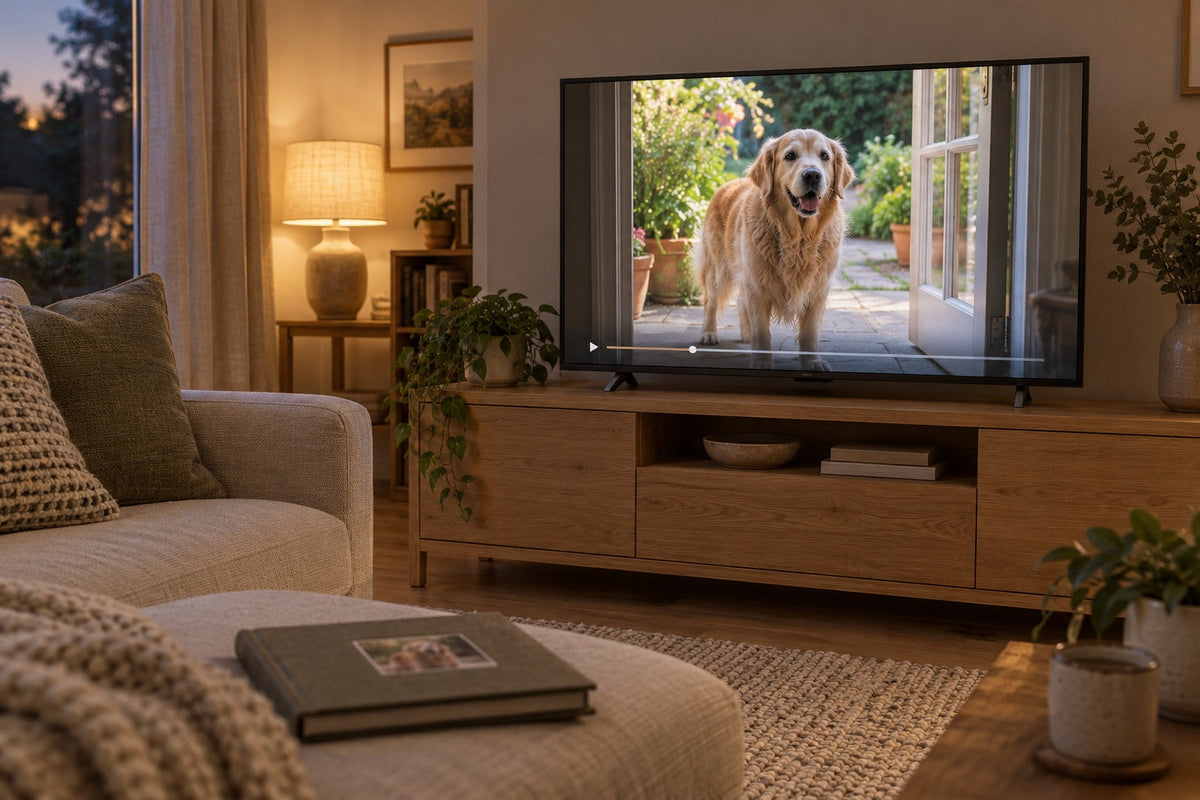
A head turning at the sound of a name can be the part of a home video you want to keep. To decide how to make a pet memorial video, start with that moment and choose the photographs that belong beside it. You can make a short film with still pictures alone, too.
The 90-second plan below gives you somewhere to begin. It is a working example, not a rule for how long a tribute should be. Choose the audience before editing: a film for your own phone can be different from one shown to a room of relatives. You can leave the project unfinished and return to it later.
Choose a small set you can work with
Collect copies of the photographs and clips into one project folder. Keep the originals where they are. If you later use pet memorial portrait ideas to choose a physical keepsake, return to those original photographs rather than a frame captured from your video. If you are still searching through years of pictures, first organise pet photos around the names and moments you remember; you do not need to sort the whole library before making a film.
Choose a photograph where you recognise the expression. Then look for a habit or place that will connect it to the next picture. A dog waiting beside the back door may say more than another birthday photograph. Watch each video with sound before deciding whether to keep it. A short clip might contain a familiar snuffle, a greeting or somebody saying the pet's nickname.
When relatives contribute files, ask for the original rather than a screen recording of a message. Check whether they are comfortable with their voices or faces appearing, and tell them where the finished video will go. Put any uncertain names or dates in a note for checking. You can omit a date you cannot confirm.
Choose an editor that lets you reorder pictures, trim clips, add text and save a finished video. Apple's iMovie trimming and arranging guide describes those timeline tasks. Test a tiny project first so you can check the saved result before editing everything.
A 90-second sequence built around one familiar habit
For this example, imagine a dog who always watched the garden from the back door. Introduce the dog, show that routine, then finish at the doorway again. A cat's favourite windowsill could provide the same thread.

0:00–0:15: introduce the face
Try three photographs at five seconds each: a clear face, a picture of the doorway and one showing the dog there. Put the name on the first image, with enough space around the letters. If the face fills the photograph, use a separate title card and count its time within the opening.
You do not have to begin with puppyhood. Use an early photograph when it helps the story, rather than because a timeline seems to demand it. You can start with the older pet your family remembers.
0:15–1:10: show what happened there
One possible middle is five photographs held for seven seconds each, plus two ten-second clips. That adds up to 55 seconds. The pictures might show waiting, watching birds or falling asleep nearby; the clips could show a greeting and the familiar walk through the door.
Treat these durations as a first cut. A clip with four useful seconds can stay four seconds long; shorten the film or give another image more time. Let a small action, such as a head turning, finish before cutting away. A pet memorial slideshow can fill this section with photographs if no usable footage survives.
1:10–1:30: return to one image
Try two final photographs at ten seconds each. One can show the pet with somebody close to them; the last might return to that spot by the door. Leave room for a short factual caption, such as the nickname used at home. Dates are optional.
If the last picture feels held too long, shorten it. There is no reason to stretch the film to exactly 90 seconds. For a pet memorial service, agree with the host where the video fits and test it on the playback device beforehand.
Give the pictures and sound enough room
Choose a horizontal or vertical frame for the screen you expect to use. Check every photograph inside it. Keep the ears, muzzle and paws you meant to include visible; empty space beside a vertical picture is preferable to an unwanted crop. Turn off automatic movement on a still if it gradually pushes the face out of view.
Write captions that add a detail the image does not supply. “Waiting for the seven o'clock walk” says more than “Our beautiful boy”. Only use that detail if it is true. Read each line aloud while it remains on screen. Add time or remove words if you cannot finish comfortably, and keep the type away from the face.
Listen to the original recordings before adding music. Lower or remove background music wherever it hides a voice or the pet's own sound. You can leave silence between clips instead of using a continuous soundtrack.
If you add music, check the track's licence for the place where you will share the film. The YouTube Audio Library guidance explains which tracks require artist attribution. Do not assume one platform's music permission covers every destination. Keep the licence details and any required credit with the project.
Check the finished file before sharing it
Export a video that can play outside the editor, not just an editable project. Apple's video sharing and export instructions distinguish the available routes on iPhone, iPad and Mac. Follow the options for your device rather than assuming the same file format is available everywhere.
Open the saved file from beginning to end on the intended screen, once with sound and once muted. Look for cropped faces, unreadable names, sudden volume changes and an ending that cuts off. If it will play at a gathering, test the actual speaker and keep a local copy available. A preview inside the editor cannot confirm that the exported file works.
Decide who can see the pet tribute video before sending a link. YouTube's visibility guidance says anyone with an Unlisted link can watch and reshare it. Unlisted is not the same as Private. Ask contributors again if the audience changes from a few relatives to a public page.
Save the finished video alongside the editable project and its source files. The Library of Congress recommends copies on at least two different storage media, kept in separate physical locations. Check that a copied file opens; a sharing link alone is not your saved copy.
Send one recipient a test link or file and ask them to check the picture and sound before you send it to everyone else.