October 13, 2026
How to Back Up Pet Photos and Test the Copies
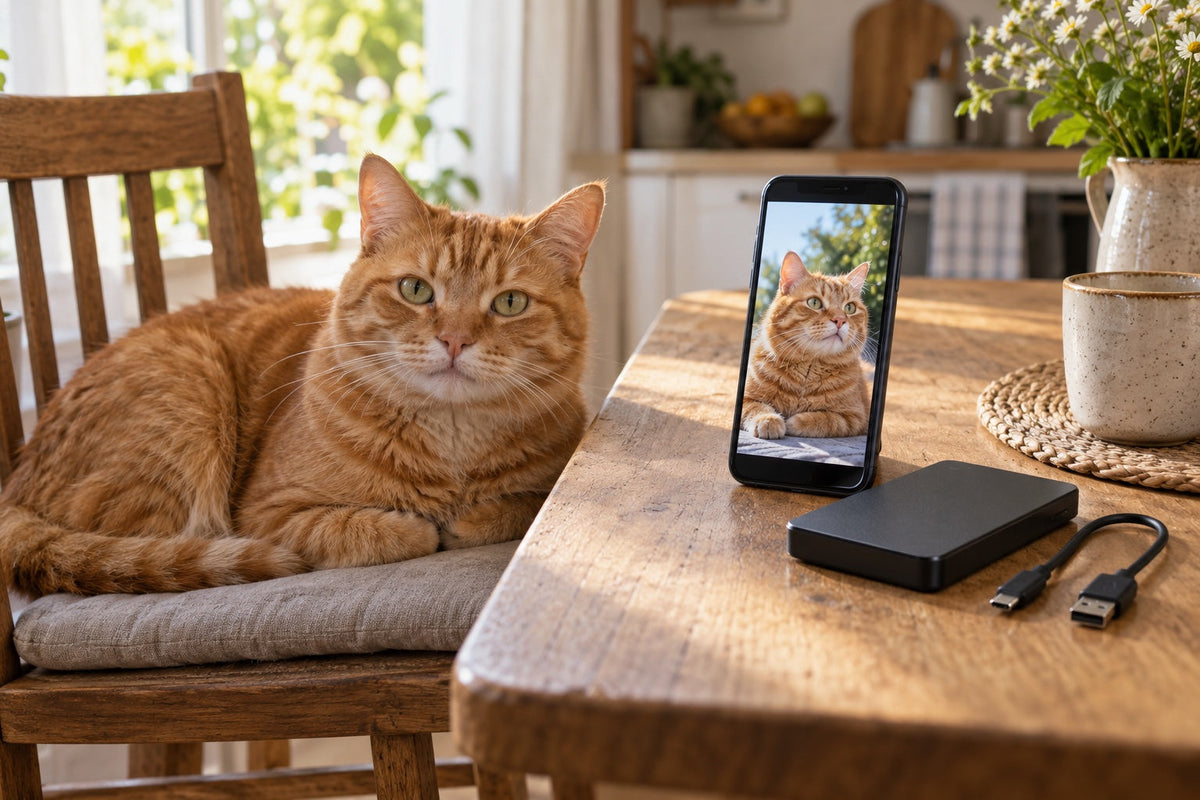
Which copy would you open without your phone?
If you are deciding how to back up pet photos, start by making a separate copy of the files and checking that you can open it without returning to your everyday photo library. A pet photo backup needs to be more than a familiar thumbnail on another screen.
The photograph might be a sharp portrait of your dog, or a slightly blurred picture of the cat asleep in a saucepan. Keep what matters to you. You do not need to finish sorting years of photographs before protecting a small batch. If finding the files is the problem, our guide to organising pet photos deals with names, dates and albums.
First, identify where each copy lives. Apple explains that iCloud Photos synchronises edits and deletions across devices. Those photographs are not duplicated in the device's iCloud backup. The same picture on an iPhone and a Mac can therefore belong to one connected library.
For each location, write down what could happen to the photograph:
| Where the photograph appears | What still needs checking |
|---|---|
| Phone and laptop using the same synced library | Would deleting it in that library remove it from both? |
| Two folders on one drive | Both depend on that drive. Where is the copy for a drive failure? |
| A separate export on another storage device | Can you open the files, and is another copy stored elsewhere? |
This is a planning exercise, not a reason to test the delete button. Leave the source photographs alone. Write down the actual storage locations; “on the computer” is too vague if one folder is local and another belongs to a cloud service.
Export a batch without changing the library
Choose a group you can check in one sitting. Include an older photograph and a recent one, plus any special format you want to preserve, such as a short video. A batch of ordinary JPEGs will not tell you whether your motion photographs have survived as intended.
Use an empty destination folder with enough available space. Keep the originals and any edited versions you want to remember. A tighter crop may be useful for a card, while the uncropped picture still shows the dog's stance. For a later commission, choosing portrait reference photos is a separate task; do not discard other photographs just because they are unsuitable as references.
If the photographs are in Apple Photos
Follow Apple's current copying instructions for your device. On iPhone or iPad, the documented route uses Download and Keep Originals, then Export Unmodified Original from the selected photographs' Share menu, with an external storage device as the destination. Allow downloads and copying to finish before disconnecting anything. Settings and available connections depend on the device.
On a Mac, selected photographs can be copied through File, then Export. Check which version the export option will save. An unmodified original will not stand in for an edited version you also want. Apple also notes that copies from Shared Albums may not retain full resolution; ask for the original file where it is available.
An export of selected pictures is not a backup of the whole Photos library. For that larger job, use Apple's library-backup guidance. It also explains why files stored outside the library need separate attention.
If the photographs are in Google Photos
Google's data-download guide describes creating an archive through Google Takeout. Select the relevant photo data rather than accepting an export of every Google product. Check the selection and delivery options shown for your account, then download the completed archive.
Google says downloading the data does not delete it from its servers. It also warns that changes made between requesting the download and creating the archive might not be included. Record when you requested the export and which photographs you intended it to cover. A completed download does not prove that the selection was complete.
Keep the downloaded package intact while checking a separate extracted copy. If it contains unfamiliar companion files, retain them until you know what they hold. Do not tidy the only export as you go.
Recover a few files into a new folder

Try a small recovery rehearsal. Close the photo library and open the backup destination itself. Copy a small selection from there into a new test folder, without overwriting the originals or importing anything back into the library.
Open those files with a suitable viewer. Look at the pet's face, then the full photograph. Compare the dimensions with the intended source version, and check whether you have recovered the original, an edit or only a small preview. Play a video through with sound if sound is part of what you meant to keep.
If a file will not open, leave all copies in place. Note its name and format, then check the export instructions and the viewer's supported formats. Do not convert or replace the only copy while investigating. A second device can help test access, but use one you control rather than uploading private photographs to an unfamiliar website.
This rehearsal only checks the sampled files. It cannot certify every photograph or every future recovery. If it exposes a missing year, broken file or lost edit, fix the export plan and test again before relying on it.
Leave a record for the next backup
The Library of Congress recommends copies in different locations and checking that photographs remain readable at least once a year. Two drives kept in the same bag share a location risk. Choose another location you can access and protect, rather than treating the number of folders as the measure of safety.
Keep a short note alongside each batch: the pet and period covered, the source, the copy date, storage locations and the date of the recovery test. Describe the test honestly. “Opened five selected files” means something different from “checked the whole collection”. Record any gap that remains.
For example, a note for a pet called Pip could read: “Pip, January–June photographs; copied to the labelled home drive and a separate off-site copy; opened an early and a late image from each copy; videos still to do.” Use your own dates and record the copies you actually checked.
Decide when you will add new photographs. After a holiday, a birthday or a busy month, check what has arrived since the last copy. Give the next export its own dated destination so it does not silently replace your earlier work.
Backing up pet photos will leave some decisions for later. Write down the next batch before you stop: perhaps the videos still on an old phone, or pictures a family member has offered to send. Keep the source library untouched while you work through that list.